Introduction
Overview
This document describes core architecture concepts and APIs required to operate Trident through its Python API.
The Trident model is a simulator that repeatedly solves optimization problems in the form of linear programming (LP) problems. The LP problems cover a decision period, of user-defined length, typically being a week or a day. We refer to this LP problem as the stage decision problem.
Users must provide a data set, a representation of the physical system and specify for which period one wishes to simulate. In addition, Trident is designed to be highly flexible in terms of what is simulated. It uses a modular architecture, where modules can be swapped in and out depending on what functionality the user requires. During the set up of each decision problem, each module will add its own contribution to the LP problem, and after it is solved retrieve its respective results.
System organization
Trident consists of the following components:
ngltm-timeseries - Time series data structures
trident - Core modules and algorithms.
trident-extras - Execution context, state management, paralellization, etc.
ngltm-shyft - Shyft integration of Trident.
trident-doc - Source code for this document.
trident-conan-recipes - Conan recipes for third party libraries used by trident.
The following figure shows the dependencies between the components:

Python packages
The following python packages are created, including python extensions:
trident
trident-extras
ngltm-shyft
C++ packages
The C++ packages containing libraries and headers are created:
ngltm-timeseries
trident
trident-extras
Header files exported in Trident are found under trident/, and belong to the C++
namespace trident::.
Unit tests
Unit tests are found in two forms; Python and C++ based unit tests. Python unit
tests are found under ./<pymodule name>/test, and C++ unit tests are found under ./test.
Getting started
Installation
The Trident system is distributed as a set of Python packages (wheels), containing the C++ binary files and Python code. The wheels are available at ngltm.no/software.
Prerequisits
Python with pip or Anaconda (version 3.11)
cplex binaries (Optional)
tqdm (Optional for displaying progress bars)
ipywidgets (Optional for displaying progress bars in a Jupyter Notebook)
Procedure
To install, download the files and install them using the pip install command.
Note: It is recommended to create and activate a virtual environment first. See here.
pip install trident-<version>-<platform>-<architecture>.whl
pip install trident-extras-<version>-<platform>-<architecture>.whl
Installing with Cplex
To use Trident with Cplex, the Cplex binary file (cplex.dll on windows or libcplex.so on linux) must be available.
Windows
If Cplex studio 2010 is installed, make sure the environment variable “CPLEX_STUDIO_DIR201” is set. Otherwise, you can set the CPLEX_DLL_PATH environment variable to the directory containing the dll.
A third option is to add the location of cplex2010.dll in the user script, before including Trident using:
import os

os.add_dll_directory(path_to_cplex_dll)

# import trident afterwards
Linux
To use Cplex on Linux, make sure that the LD_LIBRARY_PATH environment variable includes the location of libcplex2010.so.
Test the installation
To test the installation, run:
python -m trident.test
Jupyter notebook
A Jupyter Notebook is a web-based interface for processing and presenting live code.
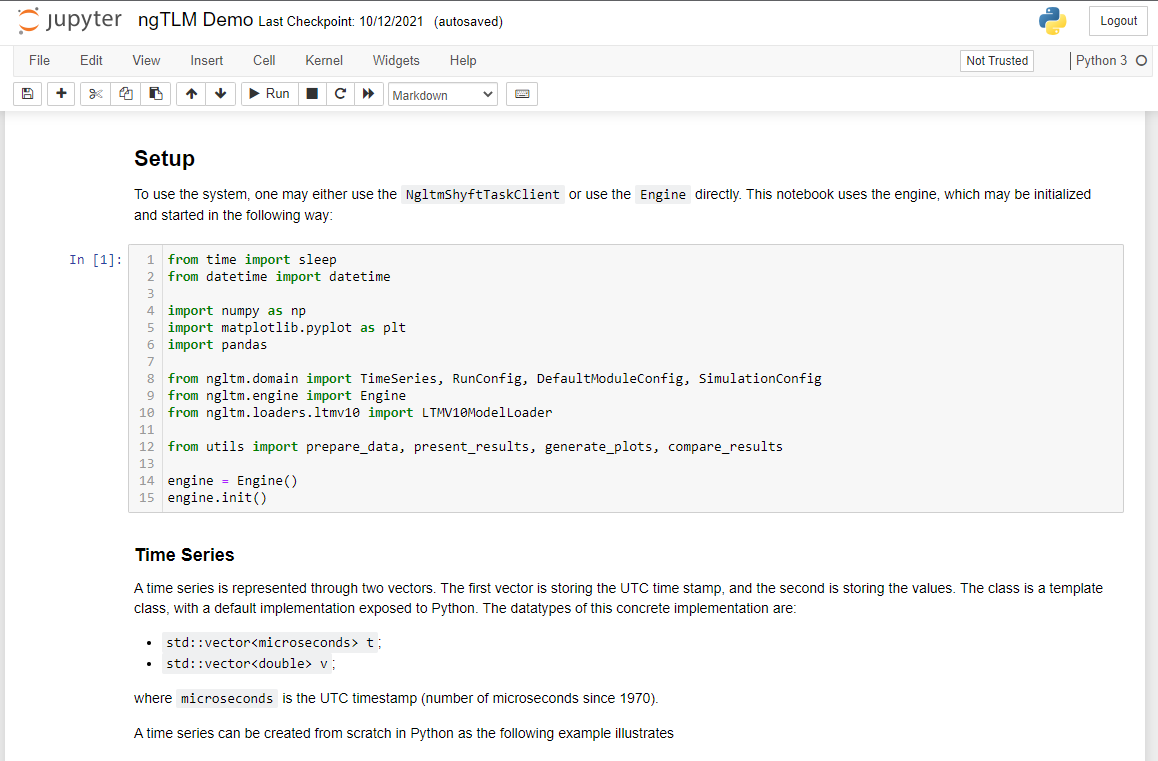
In the Trident project, notebooks are used for documentation, in the form of example code, and as a platform to present demos.
A full guide on how to install and run the notebook can be found here. In order to run the notebook, the Trident python package must also be installed, as described above.
Example code
Practical examples for how to use Trident can be found here: ngltm.no/documentation/notebooks.
Note: If you are a first time user, we highly recommend you to look through the
basic_run_trident.ipynbanddomain_example.ipynb.